



Stop wasting hours memorizing complex syntax. If you are looking for the best prompts for Excel to automate your spreadsheet tasks, you have found the ultimate resource.
In 2026, you don’t need to be a data scientist to write advanced formulas. By using ChatGPT for Excel (or Copilot), you can generate VLOOKUPs, debug errors, and write VBA code in seconds. This guide provides a copy-paste library of the best prompts for Excel to help you work smarter, not harder.
Pro Tip: Once you master data analysis, you’ll need to present it. Check out our guide on Best Midjourney Prompts for Web Design & Dashboards to create stunning visual reports for your data.
The “Perfect Prompt” Formula for Excel
To get the best prompts for Excel results, you need to be specific. AI models like ChatGPT work best when you give them context.
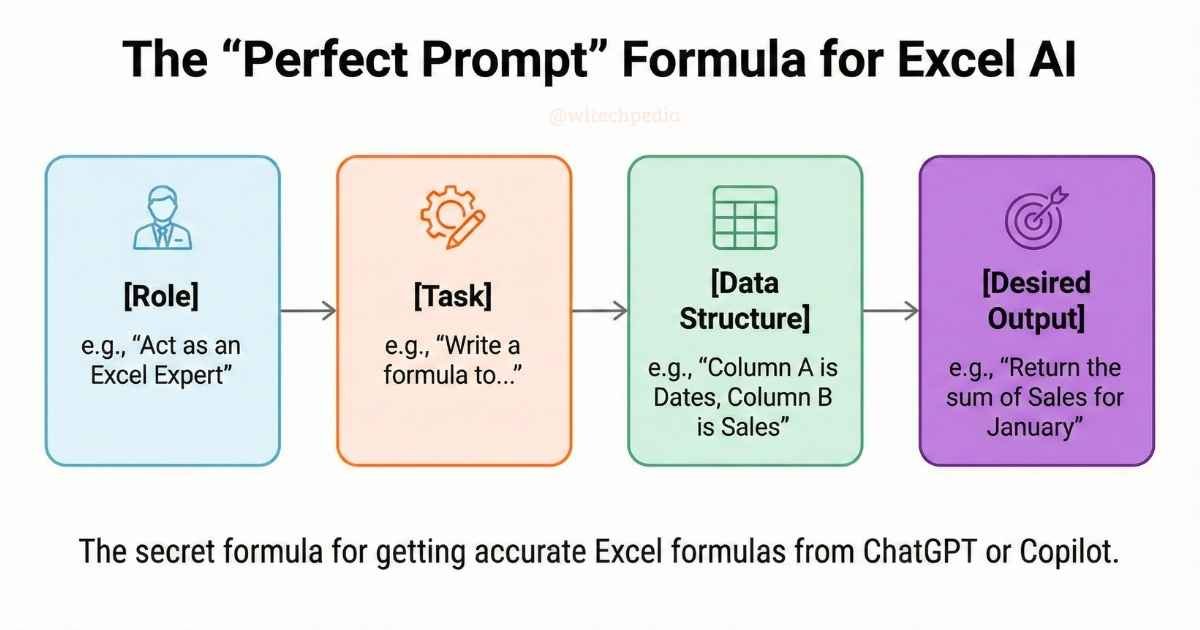
Formula: [Role] + [Task] + [Data Structure] + [Desired Output]
Best Prompts for Excel Formulas & Functions
Whether you are a beginner or a pro, these are the best prompts for Excel formulas to solve common problems.
Generate Complex Nested IF Formulas
Stop getting lost in parentheses. Let AI handle the logic.
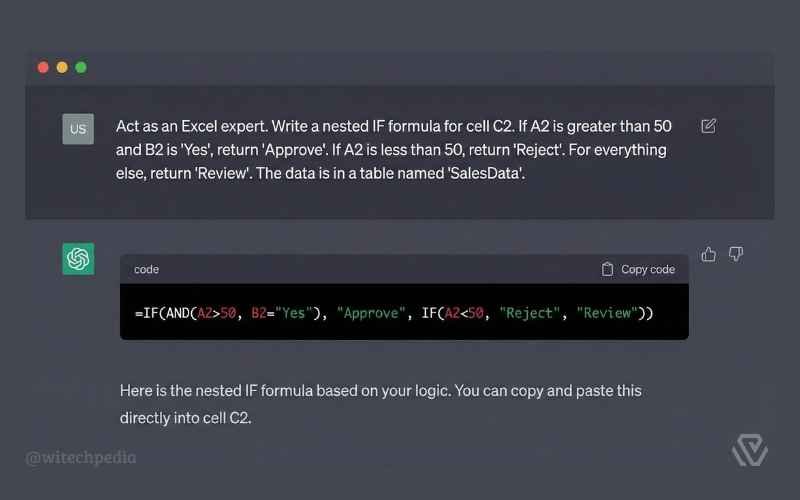
Prompt:
“Act as an Excel expert. Write a nested IF formula for cell C2. If A2 is greater than 50 and B2 is ‘Yes’, return ‘Approve’. If A2 is less than 50, return ‘Reject’. For everything else, return ‘Review’. The data is in a table named ‘SalesData’.”
Master VLOOKUP and XLOOKUP
Merge data across sheets without the headache.
Prompt:
“I need to look up values from ‘Sheet1’ Column A (Employee ID) and find the matching ‘Salary’ in ‘Sheet2’ Column D. Write an XLOOKUP formula to do this. If the ID is not found, display ‘Not Found’ instead of an error.”
- External Resource: If you want to understand how these functions work under the hood, check out the official Microsoft Support page on XLOOKUP.
Best Prompts for Excel Debugging & Error Fixing
Is your spreadsheet full of #VALUE! or #REF! errors? These are the best prompts for Excel debugging to fix them instantly.
| Error | The Fix Prompt |
| #VALUE! | “I am getting a #VALUE! error in this formula: [PASTE FORMULA]. Column A contains dates formatted as text. How do I fix this?” |
| #DIV/0! | “Wrap this formula in an IFERROR function to display a hyphen ‘-‘ instead of #DIV/0! when the denominator is zero: [PASTE FORMULA]“ |
Best Prompts for Excel Macros & VBA Automation
You don’t need to learn coding to automate repetitive tasks. These are the best prompts for Excel VBA generation.
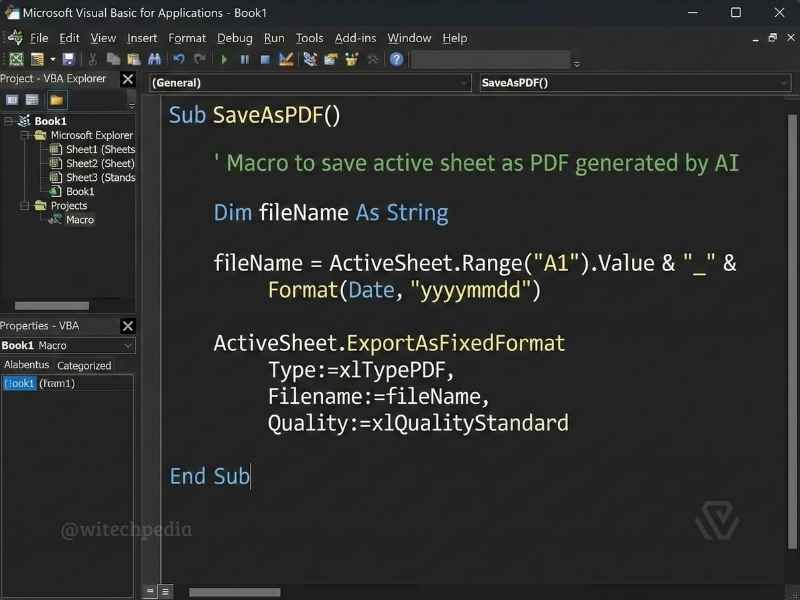
Automate Daily Reports with VBA
Prompt:
“Act as a VBA Developer. Write a VBA macro that:
- Saves the active worksheet as a PDF.
- Names the file using the value in cell A1 plus today’s date.
- Saves it to the user’s ‘Documents’ folder.Provide the code and explain how to insert it.”
Clean and Format Messy Data
Prompt:
“Write a VBA script to loop through Column B. If a cell contains ‘N/A’ or is blank, delete the entire row. Highlight the remaining rows in light green.”
- Note on Security: Always be careful when running macros from the internet. For more on keeping your data safe, read our guide on Best Prompts for Writing Cybersecurity Incident Reports.
Best Prompts for Excel Data Analysis
Turn raw data into insights using these best prompts for Excel analysis.
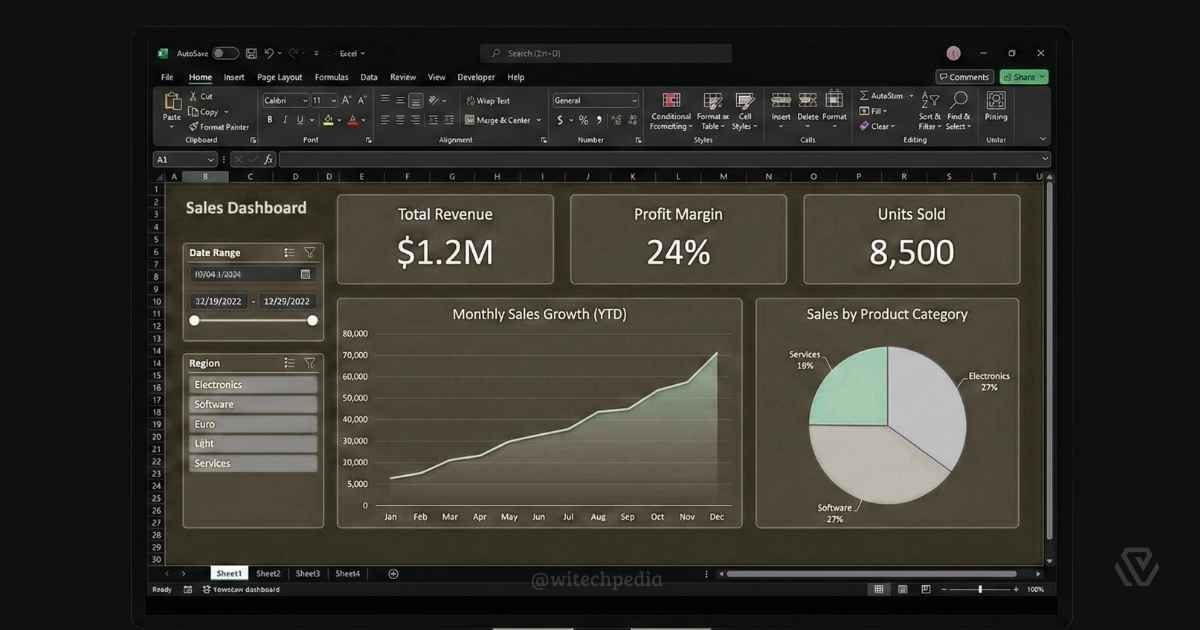
Prompt:
“I am pasting a dataset of monthly sales below. Act as a Data Analyst.
- Calculate the month-over-month growth rate.
- Identify the top 3 best-selling products.
- Suggest a Pivot Table structure to summarize this data.
[PASTE DATA HERE]“
FAQ: Using AI with Excel
Can ChatGPT write formulas for Google Sheets?
Yes! Most Excel formulas work in Google Sheets. However, for specific functions like QUERY or IMPORTRANGE, simply add “for Google Sheets” to your prompt to get the correct syntax.
Is it safe to paste company data into AI?
No. Never paste sensitive PII (Personally Identifiable Information) or financial secrets into public AI tools. Always anonymize your data first (e.g., replace names with “Employee A” and values with dummy numbers).
Why does the AI code give me a compile error?
VBA can be tricky. If the code fails, copy the error message and paste it back into the chat with: “I got this error on line 5: [Error Message]. Fix the code.”
Final Thoughts
Excel is a powerful tool, but it doesn’t have to be complicated. By using these best prompts for Excel, you can automate the boring stuff and focus on what matters—making decisions based on data.
Ready to learn more?
- Best Midjourney Prompts in 2026 – Visualize your data with AI art.
- Best Prompts for Coding & Debugging – Take your automation skills to the next level with Python.
Found this guide helpful? Bookmark WiTechPedia.com for more AI productivity tips!