






Moving to Microsoft’s latest operating system doesn’t have to cost a dime. If you are looking to refresh your desktop experience with a centered taskbar, improved multitasking through Snap Layouts, and better gaming performance, you have to know how to install windows 11 for free.
As long as you have a valid license for Windows 10, the transition to Windows 11 is completely free. In this guide, we will walk you through the official methods to get Windows 11 running on your machine today.
Minimum System Requirements for Windows 11 FREE upgrade 2026
Before hitting the download button, you must ensure your hardware is compatible. Microsoft significantly raised the security bar for Windows 11, making certain hardware features mandatory.
- Processor: 1 GHz or faster with 2 or more cores on a compatible 64-bit processor.
- RAM: 4 GB or more.
- Storage: 64 GB or larger storage device.
- System Firmware: UEFI, Secure Boot capable.
- TPM: Trusted Platform Module (TPM) version 2.0.
- Graphics Card: Compatible with DirectX 12 or later with WDDM 2.0 driver.
- Display: High definition (720p) display that is greater than 9” diagonally.
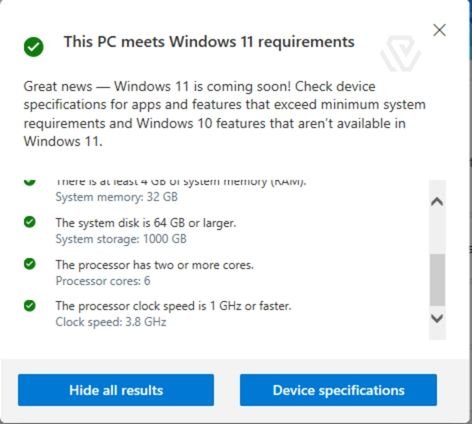
To save time, download the official PC Health Check App from Microsoft to see if your current PC qualifies for the free upgrade.
Pre-Installation Checklist
To ensure a smooth installation on your WiTechPedia-optimized setup, follow these three steps:
- Backup Your Data: While most upgrade methods keep your files, technical glitches can happen. Back up your essential documents to an external drive or a cloud service like OneDrive.
- Check Your Connection: The Windows 11 installation file is roughly 4GB to 5GB. Ensure you are on a stable Wi-Fi or Ethernet connection.
- Plug In: If you are using a laptop, keep it connected to a power source to prevent a shutdown during the critical update phase.
How to install Windows 11 for FREE 2026 (Recommended)
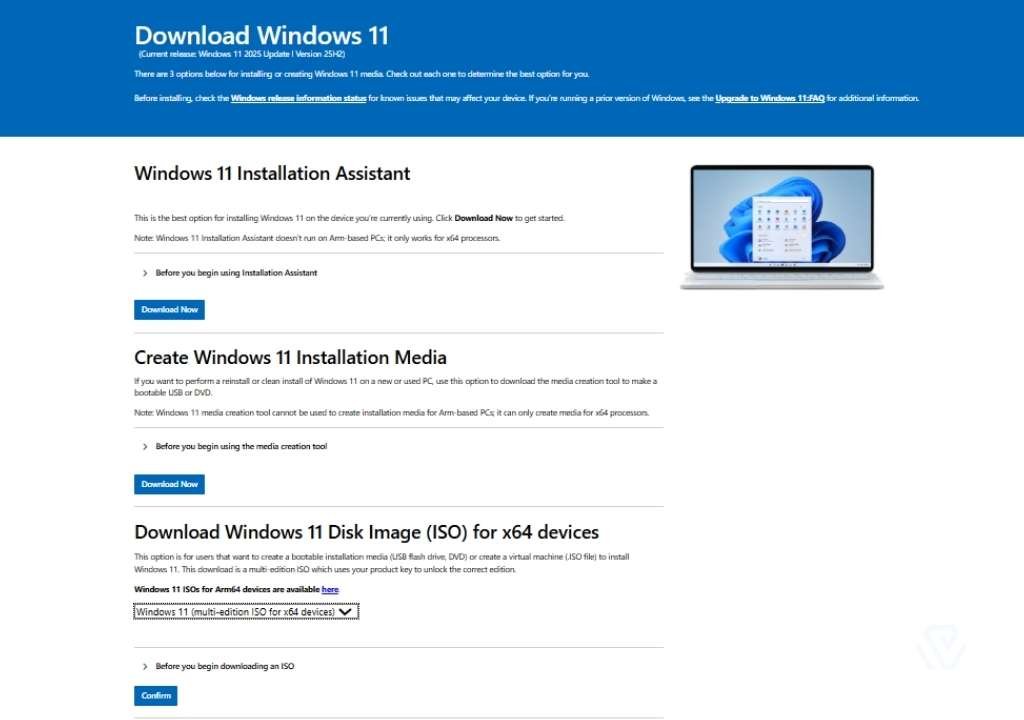
This is the easiest method for users currently running a licensed version of Windows 10 on a compatible PC. It functions like a standard Windows Update.
01. Go to the Microsoft Windows 11 Download page.
02. Under the Windows 11 Installation Assistant section, click Download Now.
03. Run the tool and click Accept and Install.
04. Once the download completes, click Restart Now. Your PC will restart several times as it completes the installation.
How to install windows 11 on new pc (Clean Install)
If you are building a new PC or want a “fresh start” without old junk files, a clean install is the way to go. Here is how to install windows 11 on new pc for FREE in 2026
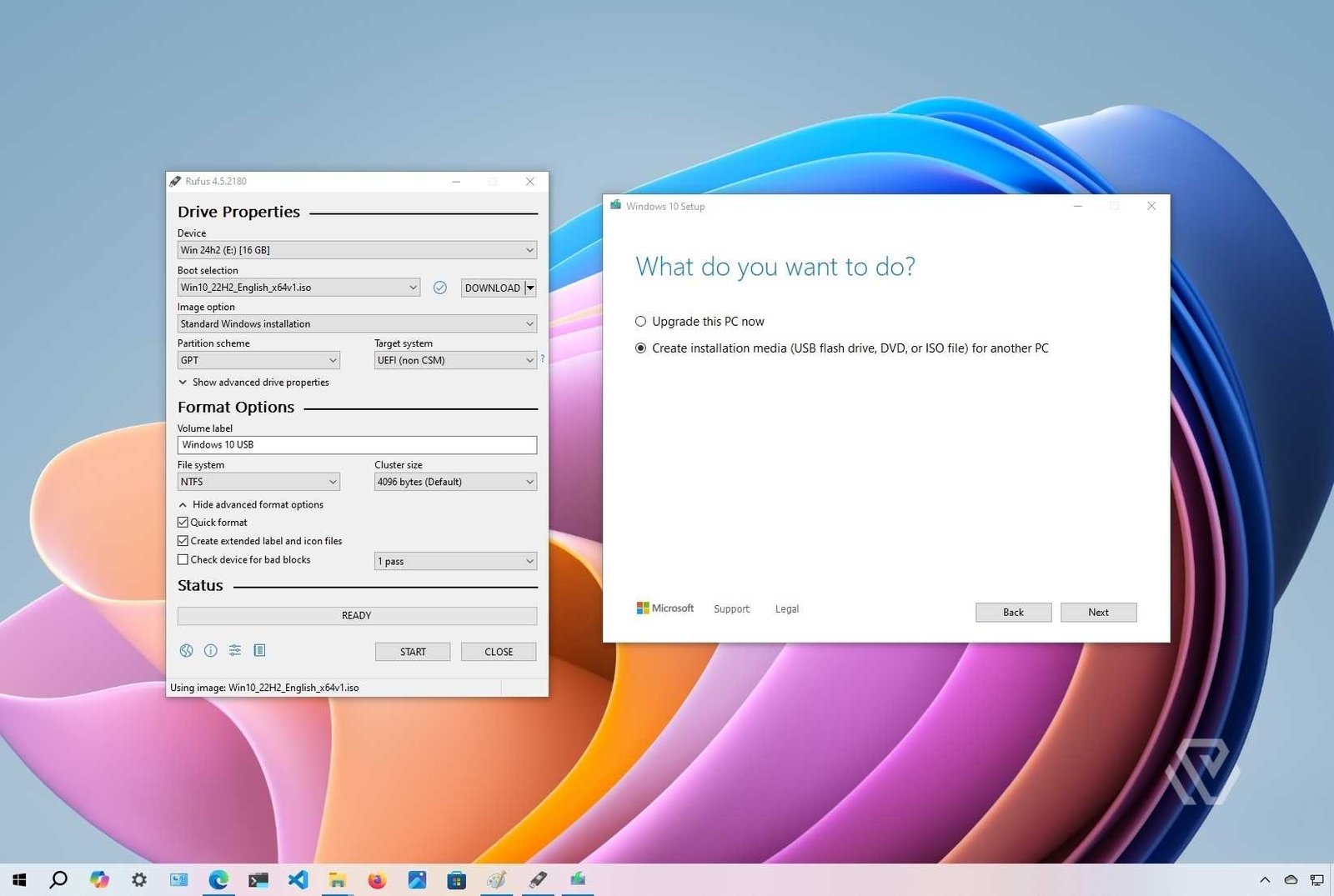
- On the Microsoft download page, select Create Windows 11 Installation Media.
- Plug in a USB flash drive with at least 8GB of space (Warning: This will erase all data on the USB).
- Run the tool, select your language, and choose the USB flash drive option.
- Once the drive is ready, restart your PC and boot from the USB (usually by hitting F12, F2, or Del during startup).
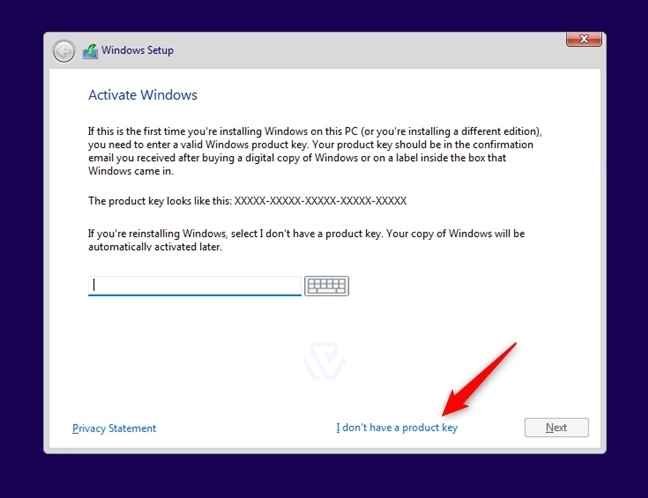
- Follow the prompts to install Windows. When asked for a product key, click “I don’t have a product key”—Windows will automatically recognize your digital license once you sign in.
Install Windows 11 Disk Image (ISO)
For power users who want to install Windows 11 on a Virtual Machine or manually mount the file, you can download the ISO directly.
- Select Download Windows 11 Disk Image (ISO) from the Microsoft site.
- Choose your language and click Confirm.
- Once downloaded, you can right-click the ISO and select Mount to run the setup.exe file directly.
Can You Install Windows 11 on Unsupported Hardware?
Many older PCs lack TPM 2.0 or have “unsupported” CPUs. While there are workarounds—such as registry edits or using tools like Rufus to bypass requirements—we recommend caution. Machines that don’t meet the requirements may not receive critical security updates in the future.
Frequently Asked Questions (FAQ)
Is Windows 11 really free?
Yes, if your current PC is running a genuine, activated version of Windows 10, the upgrade costs nothing.
How long does the installation take?
Depending on your internet speed and SSD performance, it typically takes between 30 and 90 minutes.
Will I lose my files?
If you use the Installation Assistant, your files and apps stay intact. If you perform a Clean Install via USB, your drive will be wiped.
Final Thoughts
Installing Windows 11 for free is a straightforward process as long as your hardware is up to the task. For the safest experience, use the Installation Assistant. However, if you want the peak performance we often discuss here at WiTechPedia, a clean install via USB is always the best choice for a clutter-free system.
Having trouble with a specific error code during installation? Drop a comment below and our community will help you troubleshoot!