









Over 1.4 billion people use Windows worldwide — and most of them have never opened the command prompt. That’s a missed opportunity. Buried behind that blinking cursor is one of the most powerful toolsets your operating system offers: raw, direct control over files, networks, system processes, and security. No third-party apps. No subscriptions. Just CMD commands that have quietly powered IT professionals, developers, and power users for decades.
- What Is the Windows Command Prompt?
- How to Open CMD in Windows
- CMD Commands: The Master Reference List
- CMD vs PowerShell vs Windows Terminal: Which Should You Use?
- 10 Essential CMD Commands Every Windows User Should Know
- CMD Commands Quick Reference Cheat Sheet
- Frequently Asked Questions About CMD Commands
- Conclusion: The Power of CMD Is Still Real
Whether you’re fixing a broken network connection at 11 PM, automating repetitive file tasks, or digging into system diagnostics, the Windows Command Prompt delivers. This guide covers everything — from foundational navigation commands to advanced networking and administrative tools. Bookmark it. You’ll come back.
What Is the Windows Command Prompt?
The Windows Command Prompt (cmd.exe) is a command-line interpreter built into every version of Microsoft Windows. It traces its roots back to MS-DOS and gives users the ability to interact with the operating system through typed text commands rather than a graphical interface.
It’s not just a relic of the past. Today, CMD remains invaluable for:
- System administration — managing users, permissions, and services
- Network troubleshooting — diagnosing connectivity issues with precision
- File automation — batch processing files and folders at scale
- System repair — fixing corrupted files, boot issues, and disk errors
- Developer workflows — running scripts, compiling code, managing environments
How to Open CMD in Windows
Before running CMD commands, you need to access the terminal. Here are the fastest methods:
- Method 1 — Run Dialog (fastest) Press Win + R, type
cmd, and hit Enter. - Method 2 — Start Menu Search Click Start, type Command Prompt, right-click and select Run as administrator for elevated access.
- Method 3 — From File Explorer Navigate to any folder, click the address bar, type
cmd, and press Enter — this opens CMD directly in that directory. - Method 4 — Task Manager Open Task Manager → File → Run New Task → type
cmd.
Pro Tip
Many system-level CMD commands require administrator privileges. Always right-click and choose “Run as administrator” when dealing with system settings, disk operations, or network configurations.
CMD Commands: The Master Reference List
Basic Navigation & File Management CMD Commands
These are the commands you’ll use every single session. They form the backbone of working in the command prompt environment.
| Command | Syntax | What It Does |
|---|---|---|
dir | dir [path] | Lists files and folders in the current directory |
cd | cd [folder] | Changes the current directory |
cd .. | cd .. | Moves up one directory level |
cd / | cd / | Returns to the root of the current drive |
cls | cls | Clears the command prompt screen |
mkdir | mkdir [name] | Creates a new folder |
rmdir | rmdir /s /q [name] | Deletes a folder and its contents |
del | del [filename] | Deletes one or more files |
copy | copy [src] [dest] | Copies files to a new location |
move | move [src] [dest] | Moves files to a new location |
ren | ren [old] [new] | Renames a file or folder |
type | type [file] | Displays the contents of a text file |
echo | echo [text] | Prints text to the screen or a file |
tree | tree [path] | Displays a folder structure as a tree |
attrib | attrib +h [file] | Changes file attributes (hidden, read-only) |
Real-world use: IT technicians use dir /s /b *.log to recursively find all log files across a directory tree — saving hours of manual searching. Check out the Official Windows Command Reference.
System Information CMD Commands
These commands pull detailed data about your hardware, OS, and running environment — essential for diagnostics and asset management. Use System File Checker Tool for better understanding.
| Command | What It Does |
|---|---|
systeminfo | Displays comprehensive system details: OS version, RAM, hotfixes, and network adapters |
ver | Shows the current Windows version |
hostname | Displays the computer’s network name |
whoami | Shows the currently logged-in user and domain |
set | Lists all current environment variables |
wmic | Windows Management Instrumentation — deep hardware queries |
driverquery | Lists all installed device drivers |
tasklist | Shows all currently running processes |
taskkill | Terminates a process by name or PID |
Example — Kill a hung process:
cmd
taskkill /f /im notepad.exeThe /f flag forces termination. Replace notepad.exe with whatever application is frozen.
Example — Query CPU details via WMIC:
cmd
wmic cpu get name, maxclockspeed, numberofcoresNetwork Troubleshooting CMD Commands
This is where CMD commands truly shine. Network diagnostics that would take minutes in a GUI interface take seconds here.
| Command | Syntax | What It Does |
|---|---|---|
ipconfig | ipconfig /all | Shows all network adapter IP details |
ping | ping [host] | Tests connectivity to a host |
tracert | tracert [host] | Traces the route packets take to a destination |
nslookup | nslookup [domain] | Queries DNS records for a domain |
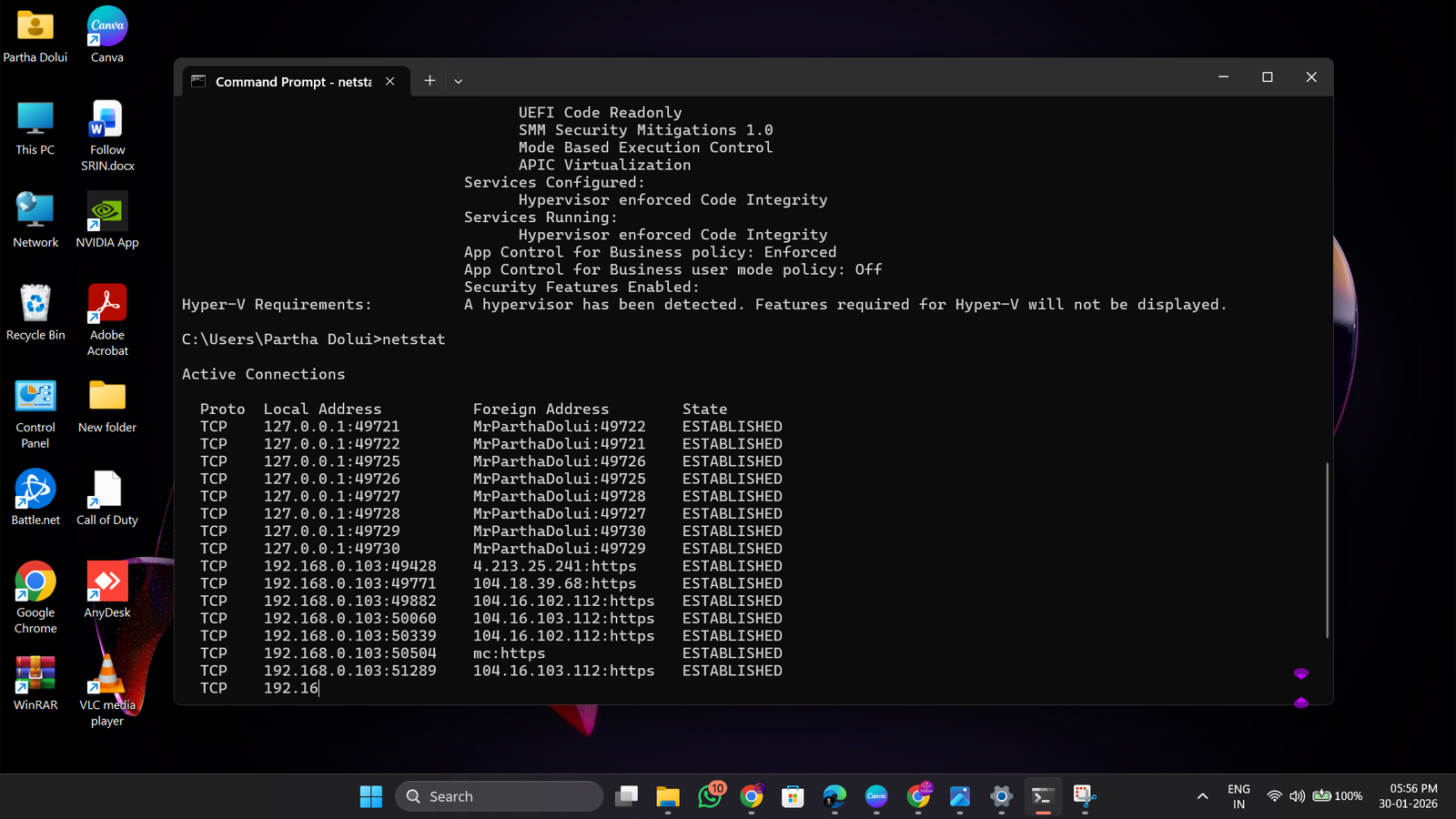
netstat | netstat -an | Shows active connections and listening ports |
arp | arp -a | Displays the ARP cache (IP-to-MAC mapping) |
pathping | pathping [host] | Combines ping and tracert with packet loss stats |
netsh | netsh wlan show profiles | Manages network settings and shows Wi-Fi profiles |
nbtstat | nbtstat -n | Shows NetBIOS name table and MAC address |
Power user trick — View saved Wi-Fi passwords:
cmd
netsh wlan show profile name="YourNetworkName" key=clearLook for “Key Content” in the output. This is the actual password for the saved Wi-Fi network.
Release and renew IP address:
cmd
ipconfig /release
ipconfig /renew
Flush DNS cache (fixes most “site not loading” issues):
cmd
ipconfig /flushdnsDisk & Drive Management CMD Commands
These commands let you inspect, manage, and repair storage drives without needing third-party software.
| Command | What It Does |
|---|---|
chkdsk | Checks and repairs disk errors |
diskpart | Launches the disk partition management tool |
format | Formats a drive or partition |
defrag | Defragments a hard drive (HDD only) |
sfc /scannow | Scans and repairs corrupted Windows system files |
dism | Repairs Windows image and system components |
vol | Displays the volume label and serial number of a disk |
fsutil | Advanced file system utility (requires admin) |
Most important command for a broken Windows installation:
You may Also Like

cmd
sfc /scannowThis scans all protected system files and replaces corrupted ones automatically. Run it as administrator. If SFC fails, escalate to:
cmd
DISM /Online /Cleanup-Image /RestoreHealthCheck disk health:
cmd
chkdsk C: /f /r/f fixes errors. /r locates bad sectors. Schedule on restart when the drive is in use.
User & Permission Management CMD Commands
Administrators rely on these commands to manage accounts, groups, and access control across machines.
| Command | What It Does |
|---|---|
net user | Lists all user accounts on the system |
net user [name] * | Changes a user’s password interactively |
net user [name] /add | Creates a new user account |
net user [name] /delete | Removes a user account |
net localgroup | Lists local user groups |
net localgroup Administrators [user] /add | Adds a user to the Administrators group |
whoami /priv | Shows current user’s privileges |
runas | Runs a program as a different user |
Create a local admin account (useful for recovery):
cmd
net user TechAdmin Password123 /add
net localgroup Administrators TechAdmin /add
Process & Service Management CMD Commands
Monitor and control what’s running on your system — without opening Task Manager.
| Command | What It Does |
|---|---|
tasklist | Lists all running processes with PID |
taskkill /f /pid [PID] | Force-kills a process by its Process ID |
sc query | Lists all services and their status |
sc start [service] | Starts a Windows service |
sc stop [service] | Stops a Windows service |
net start | Lists all currently running services |
wmic process list brief | Summarized list of running processes with CPU/memory |
Example — Restart the Windows Update service:
cmd
sc stop wuauserv
sc start wuauserv
Batch Scripting & Automation Tricks
CMD commands become exponentially more powerful when chained together or scripted. Here are the key operators and patterns:
Chaining commands:
cmd
command1 && command2   :: Run command2 only if command1 succeeds
command1 || command2   :: Run command2 only if command1 fails
command1 & command2    :: Run both commands sequentially
Redirect output to a file:
cmd
systeminfo > C:\system_report.txtAppend output without overwriting:
cmd
echo Log entry >> C:\log.txtLoop through files:
cmd
for %f in (*.txt) do echo %fSimple batch script — Backup a folder:
batch
@echo off
set src=C:\MyFiles
set dest=D:\Backup
xcopy %src% %dest% /e /h /y
echo Backup complete!
pause
Save as .bat, double-click to run. This copies every file including hidden ones (/h) and overwrites without asking (/y).
CMD vs PowerShell vs Windows Terminal: Which Should You Use?
Many users ask whether CMD is still relevant when PowerShell and Windows Terminal exist. Here’s an honest breakdown:
| Feature | CMD | PowerShell | Windows Terminal |
|---|---|---|---|
| Ease of use | ✅ Simple | ⚠️ Moderate | ✅ Modern UI |
| Scripting power | ⚠️ Basic | ✅ Advanced | Depends on shell |
| Object-based output | ❌ No | ✅ Yes | ✅ Yes |
| Cross-platform | ❌ Windows only | ✅ Yes | ✅ Yes |
| Legacy compatibility | ✅ Excellent | ⚠️ Some issues | ✅ Runs CMD |
| Learning curve | ✅ Low | ⚠️ Steeper | ✅ Low (it’s a wrapper) |
| Admin tasks | ✅ Strong | ✅ Stronger | ✅ Both |
Bottom line: Use CMD for quick, universal tasks and legacy scripts. Switch to PowerShell for complex automation, remote management, and modern scripting. Use Windows Terminal as the interface that runs either one — it’s the best of both worlds.
10 Essential CMD Commands Every Windows User Should Know
If you’re short on time, these ten commands deliver the most value in everyday situations:
ipconfig /flushdns— Fix stubborn website loading issues in secondssfc /scannow— Repair corrupted Windows files without reinstallingping 8.8.8.8— Test internet connectivity instantlynetstat -an— See every open port and connection on your machinetasklist— Find exactly what’s running and consuming resourcessysteminfo— Get a full system health snapshotchkdsk C: /f /r— Detect and fix hard drive errorsnetsh wlan show profiles— List every saved Wi-Fi networktree C:\— Visualize your entire folder structureDISM /Online /Cleanup-Image /RestoreHealth— Rebuild a broken Windows image
CMD Commands Quick Reference Cheat Sheet
Navigation
cd [folder]          Change directory
cd ..                Go up one level
dir                  List directory contents
cls                  Clear screen
Files
copy [src] [dest]    Copy file
move [src] [dest]    Move file
del [file]           Delete file
mkdir [name]         Create folder
rmdir /s /q [name]   Delete folder
ren [old] [new]      Rename file
Network
ipconfig /all        Show all IP info
ipconfig /flushdns   Flush DNS cache
ping [host]          Test connectivity
tracert [host]       Trace route
netstat -an          Show open ports
nslookup [domain]    DNS lookup
System
systeminfo           Full system info
tasklist             Running processes
taskkill /f /im      Kill process
sfc /scannow         Repair system files
chkdsk C: /f /r      Check disk
DISM /RestoreHealth  Repair Windows image
Frequently Asked Questions About CMD Commands
How do I run CMD as administrator in Windows 11?
Press Win + S, type Command Prompt, right-click the result, and select Run as administrator. Alternatively, press Win + X and choose Terminal (Admin) or Command Prompt (Admin) depending on your Windows version. You’ll see “Administrator:” in the title bar confirming elevated access. Many system-level CMD commands — including sfc, chkdsk, and netsh — require administrator privileges to function correctly.
What is the difference between CMD and PowerShell?
CMD (Command Prompt) is a basic command-line interpreter that processes simple text commands and batch scripts. PowerShell is a more advanced shell built on .NET that treats everything as objects, not plain text. PowerShell supports complex scripting, remote execution, and pipeline operations that CMD cannot handle. However, CMD remains faster for simple tasks and has broader compatibility with legacy systems and older batch files. For most everyday Windows tasks, CMD is sufficient.
How do I find my IP address using CMD commands?
Open Command Prompt and type ipconfig. Your IPv4 Address appears under your active network adapter. For a full breakdown including subnet masks, default gateway, and DNS server addresses, use ipconfig /all. To find your public IP address (the one websites see), use nslookup myip.opendns.com resolver1.opendns.com or visit a web-based IP tool.
Can CMD commands damage my computer?
Yes — if used incorrectly. Commands like format, del /f /s /q, and diskpart can permanently delete data or wipe drives without any confirmation dialog. Always double-check commands before running them, especially when operating as administrator. Never copy and paste CMD commands from untrusted sources — a technique called “pastejacking” can substitute hidden malicious commands that look harmless on screen. Stick to reputable references like this guide or Microsoft’s official documentation.
How do I stop a CMD command that is already running?
Press Ctrl + C to interrupt most running commands immediately. This sends a break signal to the current process. For commands that don’t respond to Ctrl + C, close the Command Prompt window or open Task Manager, find cmd.exe, and end the task. If a batch script is running, Ctrl + C will ask “Terminate batch job (Y/N)?” — type Y and press Enter.
What does the netsh wlan show profiles command do?
This command lists every Wi-Fi network your Windows PC has ever connected to. The profile names match the network SSIDs. To see the actual saved password for any profile, run: netsh wlan show profile name="ProfileName" key=clear and look for Key Content under Security Settings. This only works for networks saved on your machine and requires no special permissions on most systems.
Are CMD commands the same in Windows 10 and Windows 11?
Yes, the core CMD commands are essentially identical across Windows 10 and Windows 11. Both versions use the same underlying command interpreter (cmd.exe). Some newer commands related to Windows 11 features may not exist in Windows 10, and a few deprecated commands were removed or altered over time. For the vast majority of networking, file management, and system repair commands covered in this guide, the syntax and behavior are interchangeable between both versions.
Conclusion: The Power of CMD Is Still Real
The Windows Command Prompt has been dismissed as obsolete for years. It isn’t. CMD commands remain one of the most direct, reliable, and efficient ways to control your Windows environment — and learning them pays dividends whether you’re a student, a developer, a network administrator, or a curious power user.
Here are the key takeaways from this guide:
- CMD is not obsolete. It’s a fast, universal tool built into every Windows installation with zero dependencies.
- Network commands are your best friends.
ipconfig,ping,tracert, andnetstatsolve the majority of everyday connectivity problems. - System repair commands save reinstalls.
sfc /scannowandDISM /RestoreHealthcan bring a broken Windows installation back to life. - Batch scripting multiplies your productivity. Combine CMD commands in
.batfiles to automate repetitive tasks at scale. - Respect the power. Commands like
diskpartandformatare irreversible. Always verify before you execute.
The best way to get better at CMD is to use it — open a command prompt right now and try systeminfo. You’ll immediately learn more about your own computer than most users ever discover through GUI menus.