






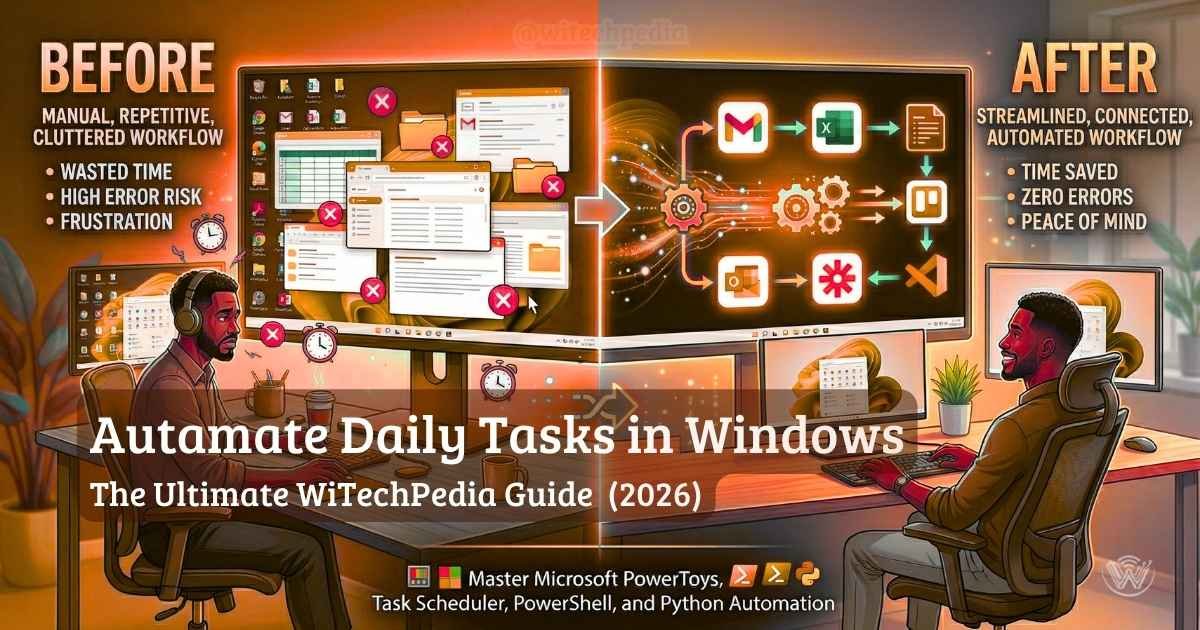
Are you tired of performing the exact same clicks, file transfers, and application launches every single day? Learning how to automate daily tasks in Windows is one of the highest-ROI skills you can develop, whether you are an everyday power user, a busy freelancer, or a full-stack developer. By offloading repetitive workflows to your operating system, you free up valuable mental bandwidth for deep work and creative problem-solving.
In this comprehensive WiTechPedia guide, we will walk you through the complete spectrum of Windows automation. We will start with simple graphical tools like Microsoft PowerToys, move up to the built-in Windows Task Scheduler, and finally dive into advanced scripting using PowerShell and Python.
Why You Should Automate Your Windows Workflow
Before diving into the technical steps on how to automate tasks in Windows, it helps to understand the immediate benefits:
Level 1: Basic Automation with Microsoft PowerToys
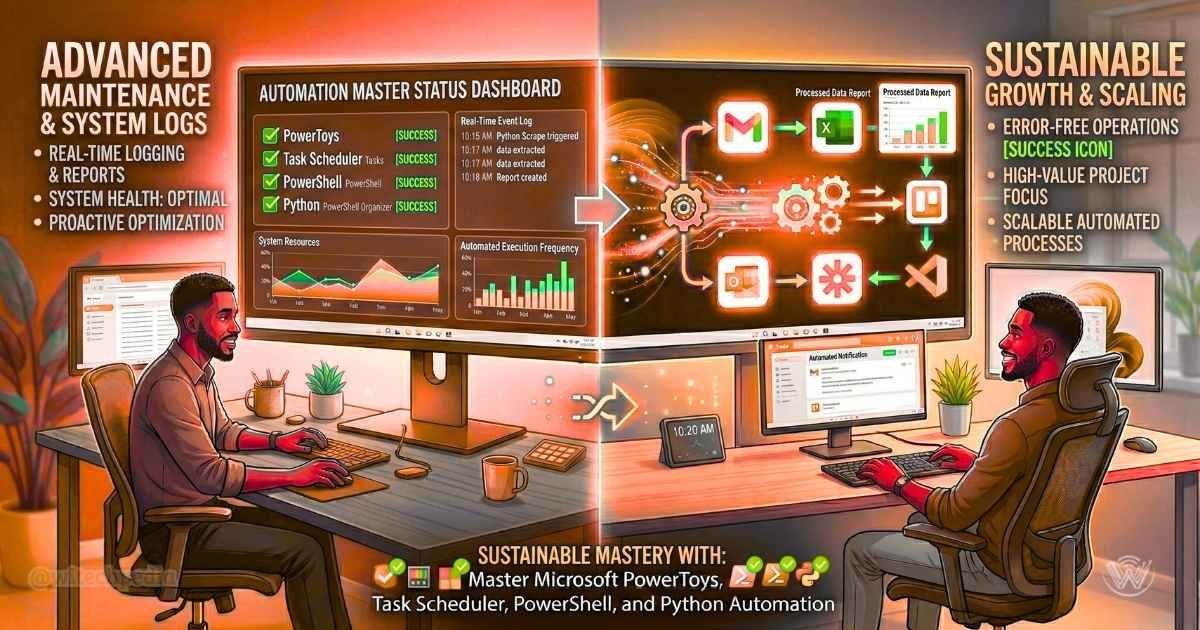
You do not need to be a programmer to start automating Windows. The best starting point is Microsoft PowerToys, an official suite of system utilities for power users.
1. Installing and Setting Up PowerToys
To get started, download PowerToys directly from the Microsoft Store or its official GitHub repository. Once installed, it runs quietly in your system tray, offering a dashboard of productivity modules.
2. Using Keyboard Manager for Custom Shortcuts
If you find yourself repeatedly typing out the same email addresses, code snippets, or client URLs, the Keyboard Manager is your best friend.
3. Window Management with FancyZones
Manually dragging and resizing windows for coding, writing, and browsing is a massive time sink. FancyZones lets you define strict grid layouts for your desktop. By holding the Shift key while dragging any window, it will automatically snap perfectly into your pre-defined zone, setting up your workspace in seconds.
Level 2: Intermediate Automation with Windows Task Scheduler
When people ask how to automate daily tasks in Windows without installing third-party software, the answer is the Windows Task Scheduler. This built-in tool is incredibly powerful for time-based and event-based triggers.
What is the Windows Task Scheduler?
Task Scheduler is a native Windows application that acts as an alarm clock for your computer’s programs and scripts. It executes actions behind the scenes based on conditions you define.
What is the Windows Task Scheduler?
Level 3: Advanced Automation for Developers
For IT professionals and developers, learning how to automate tasks in Windows using code opens up infinite possibilities.

Automating with PowerShell Scripts
PowerShell is deeply integrated into Windows. Below is a practical script that automatically organizes your cluttered Downloads folder by moving files into designated sub-folders based on their extensions.
# Script to Organize Downloads Folder
$downloadsPath = "$env:USERPROFILE\Downloads"
$folders = @{
    "Images" = @("*.jpg", "*.png", "*.gif")
    "Documents" = @("*.pdf", "*.docx", "*.xlsx")
    "Installers" = @("*.exe", "*.msi")
}

foreach ($folder in $folders.Keys) {
    $targetPath = Join-Path $downloadsPath $folder
    if (!(Test-Path $targetPath)) { New-Item -ItemType Directory -Path $targetPath | Out-Null }

    foreach ($ext in $folders[$folder]) {
        Move-Item -Path (Join-Path $downloadsPath $ext) -Destination $targetPath -ErrorAction SilentlyContinue
    }
}
Write-Host "Downloads folder organized successfully!"
You can save this as a .ps1 file and use the Task Scheduler to run it every night!
Desktop GUI Automation using Python (Pywinauto)
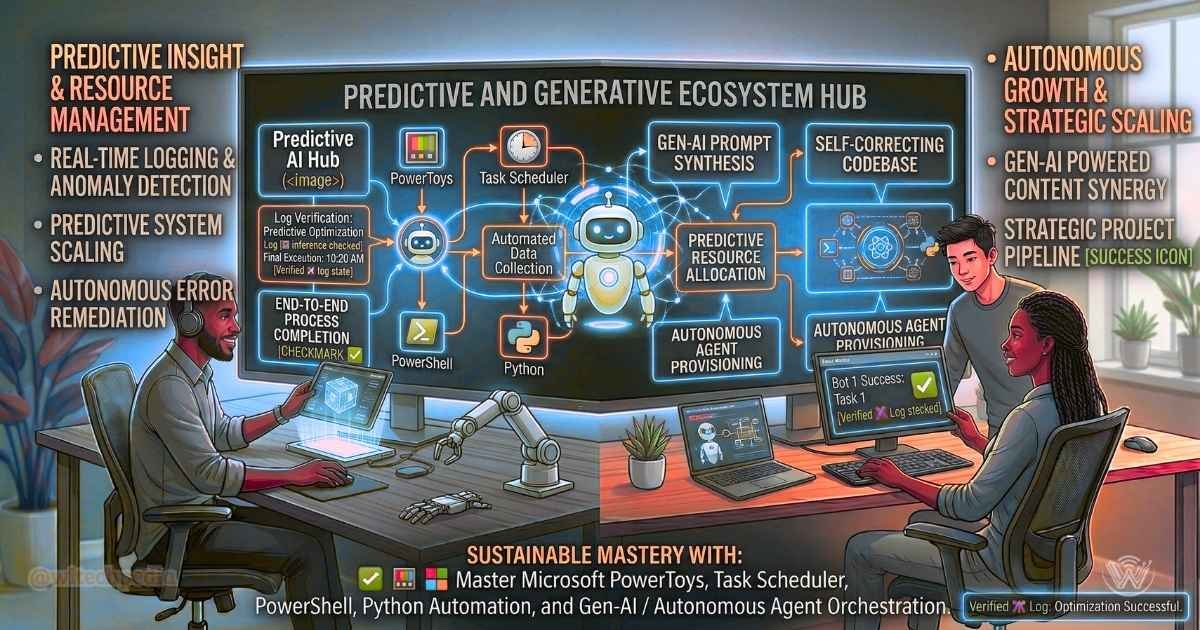
If you are dealing with legacy applications that lack a modern API, you can use Python to simulate human clicks and keystrokes. Using the pywinauto library, you can write scripts that open applications, navigate menus, and extract data autonomously. It is a brilliant bridging tool for older enterprise software.
Third-Party Windows Automation Tools Worth Trying
If you want to push beyond the native tools, consider these industry standards:
Frequently Asked Questions (FAQ)
Does automating Windows tasks cause system instability?
No, as long as you are using native tools like Task Scheduler and PowerToys, automation is completely safe. Always double-check PowerShell scripts from unknown sources before running them.
Are PowerShell scripts safe to run?
By default, Windows restricts the execution of custom PowerShell scripts to protect you from malware. You will need to carefully change your Execution Policy to RemoteSigned to run your own local scripts.
What is the difference between Task Scheduler and Power Automate?
Task Scheduler is a traditional, built-in tool for triggering scripts and local programs based on system events or time. Power Automate is a modern, visual, low-code platform designed to connect desktop actions with cloud services and web APIs.